
Work Orders & Jobs
Work order and job management software with your fields, your stages, your rules.
Create, schedule, track and close every job, from the first request through every visit to the invoice, configured to your exact process, not the one your last tool forced on you. Priority-aware, SLA-safe, tied to real customer history, and reshaped in plain English the moment your process changes. Live within a day.
The whole topic
Work order management, from intake to invoice
A work order has a life before and after the visit. This is the whole of it at a summary level, with links to the pages that go deeper on each part.
Intake: where work orders come from
Phone, portal, email, client portals and helpdesk tickets. Emailed and PDF work orders can be read into a job with customer, site, problem, priority, not-to-exceed amount and deadline filled in; see emailed work orders to jobs, PDF work orders read by AI and ServiceChannel work orders. Teams that start from helpdesk tickets should read helpdesk to field dispatch.
Templates: what each job type captures
Each job type carries its own fields, checklist, required photos and stages. Start from a free work order and checklist template, for example a fire sprinkler inspection, a chiller maintenance or a plumbing inspection checklist, then load it as your own form. Job checklists covers required items and sign-off.
Assignment: who goes
Jobs are matched to technicians by skill, certification, location and availability, with approval and undo. AI scheduling and dispatch covers the board, and field service skills management explains how to record skills so matching works.
Limits and approvals
Not-to-exceed amounts on client work orders, approvals on discounts, overtime and scope changes. See tracking not-to-exceed work orders and approval workflows.
On site: the technician's part
The work order opens on the technician app with the site, the equipment history, the checklist and the parts on the van, and works offline.
Recurring and multi-visit work
Planned maintenance creates its own work orders from the agreement (preventive maintenance); maintenance across many sites is covered on maintenance management; work in phases runs as a project.
Reports and recurring tests
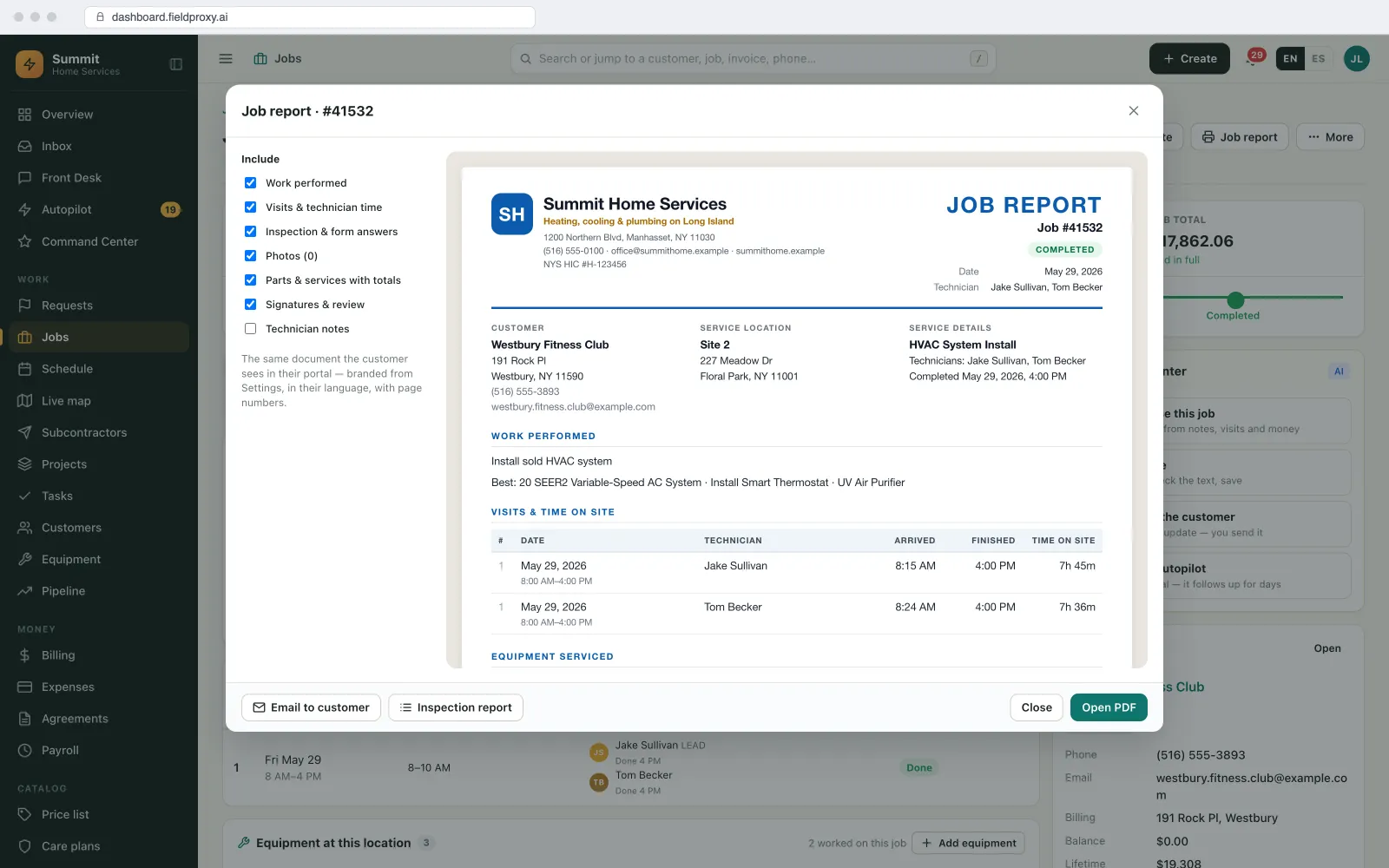
The completed work order becomes a branded job report. For periodic tests such as emergency lighting or backflow, the periodic test form guide shows how to build a test form, and inspection reports in your own format shows the report side.
Close-out and billing
Failed inspection items can become quotes (deficiencies to quotes), and the completed job becomes an invoice with its lines and photos (invoicing).
Job management
Job management from the first call to the paid invoice.
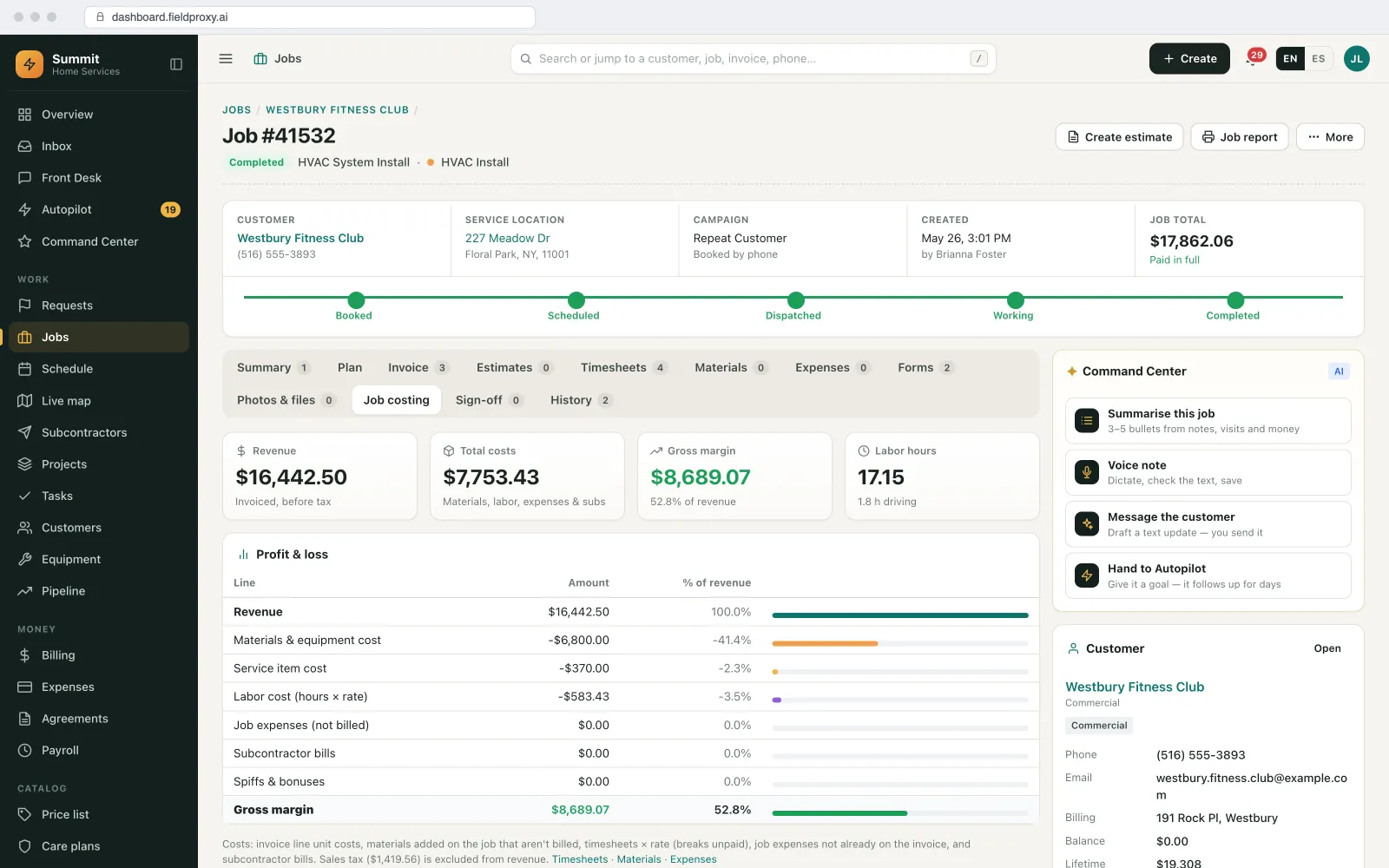
A work order is one visit's instructions. A job is everything around it: the request, the quote, every visit, the parts, the photos, the paperwork and the invoice. Fieldproxy keeps all of it on one job record that the office and the technicians both work from.
The whole job lifecycle
Your own stages
Multi-visit jobs
Attachments on the job
One status for office and field
Job costing as you go
Everything about the job on one page
One job page, everything the office needs.
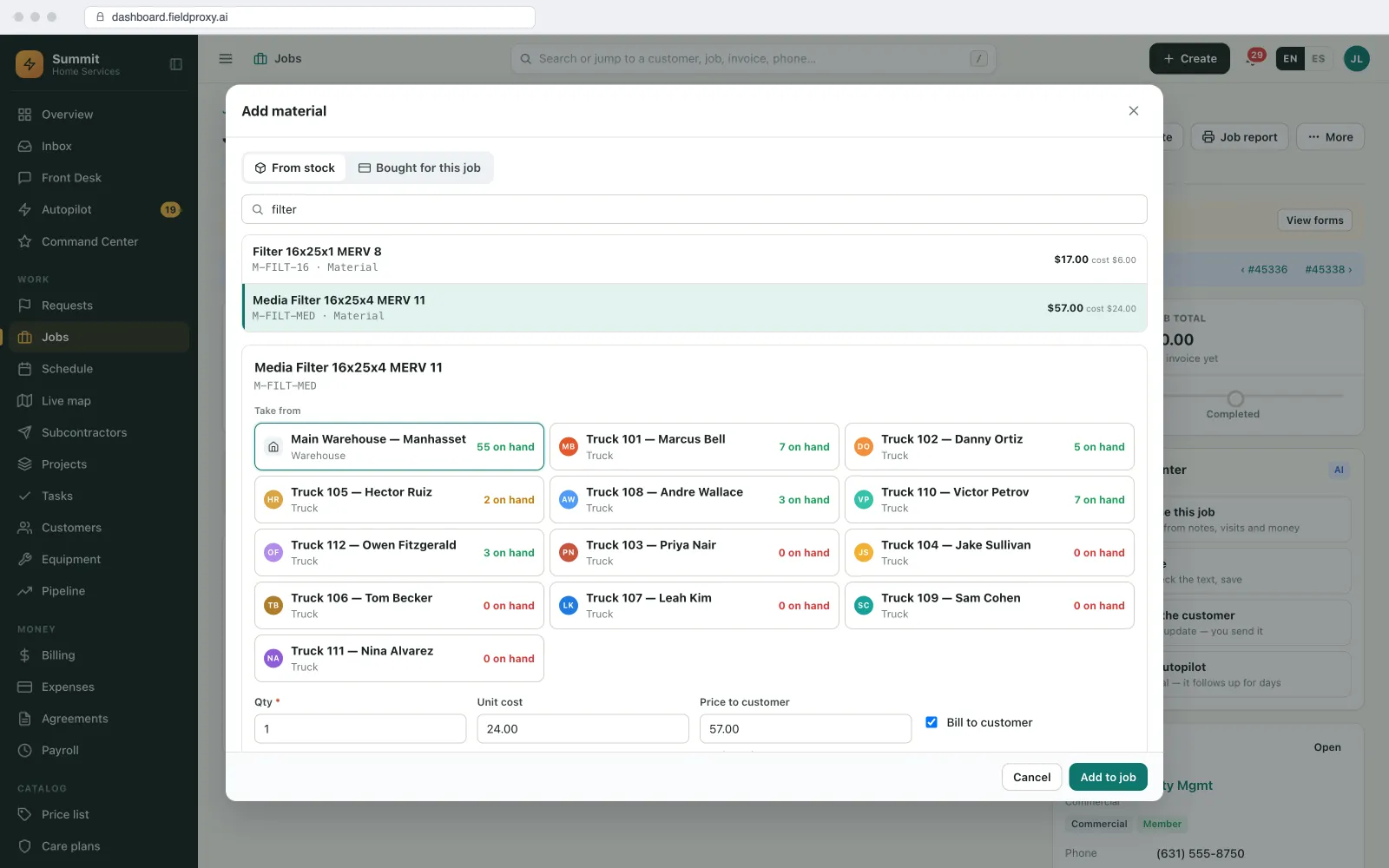
Open a job and the time, materials, costs, paperwork and people are all there, in tabs on the same record. No second system, no spreadsheet on the side.
Timesheets
Materials from stock
Expenses
Forms
Files
Crew
Location map
@mentions
Job report PDF
SLA tracking
Every SLA clock, visible before it is breached.
Set response, arrival and completion targets, and every job carries its own clock against them, counted in business hours.
Response, arrival and completion targets
Per customer, agreement or priority
Business hours
Pauses
Escalation
Breach reasons and credits
SLA report PDF
On the job and the agreement
Plain English
Describe the change. It goes live.
2 fields added
Ladder-assist checkbox + crew-size field
Pushed to every tech
Live on new work orders instantly
History preserved
Closed jobs untouched, nothing lost
Live in
Built your way
Everything a work-order system should do.
A complete feature set: priority queues, service history, parts, photos, signatures, and more, ready to use from day one.
Priority-based queueing
Full service history
Photos, signatures & notes
Parts & materials tracking
Warranty & contract aware
Multi-site & multi-asset
Automatic time tracking
Status updates everyone sees
Recurring & maintenance jobs
Approvals that actually block
A complete audit trail per record
Share a job without giving out a login
The conversation lives on the job
See it built around how your team already works.
Get DemoShaped to your trade
Your business doesn't run like the template. Neither does Fieldproxy.
HVAC
Plumbing
Electrical
Want it running on your jobs? We set it up around them.
Get DemoIntegrations
Plays nicely with the tools you already use
QuickBooks
Invoices sync the moment a job is closed
Stripe
Collect on-site or send pay-by-link
Google Calendar
Techs see their schedule where they already look
Gmail / Outlook
Customer emails thread onto the work order
Signed webhooks
Work-order events pushed to your own systems, signed and retried
Zapier
Push work-order events into 5,000+ other apps
AI agents
The AI agents that work the queue with you
Every work order that lands is read, routed and watched by an agent before a dispatcher opens the board.
Dispatch Agent
Reads the incoming order (trade, address, SLA tier, what's on which van) and proposes the tech before anyone touches the board. You approve or override.
Watcher Agent
Watches every open order for the things that cost you the renewal: response window about to breach, a job parked in one status too long, close-out missing its photos.
Vision Agent
Turns the site photos into fields on the order (make, model, serial, visible condition), so the office isn't retyping what the tech already photographed.
See it built around how your team already works.
Get DemoWorked example
How one work order runs, from a client email to a paid invoice
A facilities client emails a reactive work order for a leaking water heater at one of its stores, with a not-to-exceed amount and a 24-hour deadline. Here is that work order end to end.
- 1
The email becomes a job
The client's email and PDF are read into a new job: Kingsway Retail, store 14, 'Water heater leaking in back room', priority P2, NTE 600, due in 24 hours, with the client's own work order number kept on the job. The office checks it and saves.
- 2
The job type sets the rules
Because it is a plumbing repair, the job carries the plumbing form: before and after photos, the unit's make and serial, the cause, and the client's sign-off. It cannot be closed until those are in.
- 3
Assigned to someone who can go
The board suggests Luis Moreno: plumbing skills, already in the area, free from 1 pm. The dispatcher approves and the job reaches his phone with the site's access notes and the store's history.
- 4
On site, the scope changes
Luis checks in at the store. The tank has failed, and replacing it would take the job over the NTE. He records photos and the reason, and the job stops at Awaiting approval instead of going over the limit.
- 5
Approved, then completed
The office sends the client the replacement quote. Once it is approved, the extra work is added to the same job. Luis fits the new heater the next morning as a second visit on the same job, takes the after photos and gets the store manager's signature.
- 6
Report and invoice from the job
The job report PDF goes to the client with photos and sign-off. The invoice is drafted from both visits, with the client's work order and PO numbers on it, and syncs to QuickBooks.
One job holds the client's email, both visits, the approval, the photos, the time and parts, the report and the invoice. When the client asks why it went over the original limit, the approval and the reason are on the record with names and times.
Names and figures in this example are demo data.
What you can change, and how
Job types and forms
Each job type with its own fields, checklist, required photos and stages, changed by asking in plain English.
Stages and rules
Your statuses, and what must be true before a job moves on: a form, a photo, an approval.
Priorities and SLAs
Response, arrival and completion targets per customer, agreement or priority, in your business hours.
Limits and approvals
Not-to-exceed amounts and approval steps for discounts, overtime and scope changes.
Visibility
What technicians and subcontractors see, including whether prices are shown.
How it connects to the rest of Fieldproxy
Work orders are assigned on the board by skill, location and availability, with approval and undo.
The work order, its checklist and the site history open on the phone, offline.
Faults become quotes; completed jobs become invoices.
Parts used come off van or warehouse stock, and purchase orders can be raised against the job.
Customers raise requests and follow their work orders.
Accounting and other tools
Two-way sync with QuickBooks, Xero and Sage; work order events to other systems through Zapier, webhooks or the open API.
When this is not the right fit
- If you only need a shared list of tasks for an in-house team in one building, a simple request tracker or a CMMS may be enough.
- Reading emailed and PDF work orders fills the job for someone to check; it is not a reason to stop looking at what came in.
- Rules that stop a job closing only help if the job types are set up with the right required items. We set them up with you, and they can be changed later.
The parts of a work order you control
Each of these is set per job type at setup and can be changed by asking in plain English. Closed work orders keep the form they were completed on.
| Setting | What you choose | Example |
|---|---|---|
| Job types | The kinds of work you do, each with its own form, stages and rules. | Emergency call, planned maintenance, install, inspection, quote visit. |
| Stages | The statuses a work order moves through, and what must be done before each move. | Awaiting parts, Needs quote, Waiting on landlord, Ready to bill. |
| Fields and checklist | Questions, readings with allowed ranges, required photos and signatures. | Ladder assist required, crew size, refrigerant pressures, before and after photos. |
| Priority and SLA | Priority levels with response, arrival and completion targets in business hours. | P1: 4-hour response; P3: next business day. |
| Limits | Not-to-exceed amounts and the approvals needed above them. | Client NTE of 500 on reactive calls; anything above waits for approval. |
| Numbering and references | Your numbering, plus the client's own work order and PO numbers. | WO-90401 with the client's ticket number and PO on the invoice. |
| Who sees what | What technicians and subcontractors can see, such as prices or other jobs. | Subcontractors see only their job, through a link, with no prices. |
| Job report | The layout of the report PDF that goes to the customer. | Your logo, the checklist answers, photos and the customer's signature. |
How typical work order tools compare
Work order software ranges from simple request trackers to maintenance suites and full field service platforms. This is how the common patterns compare with Fieldproxy.
| Question | Typical tools | Fieldproxy |
|---|---|---|
| What a work order is | Often a ticket with a description, an assignee and a status. | A job with its visits, form, photos, parts, time, costs and invoice on one record. |
| Getting work in | Typed in by the office from emails and client portals. | Emailed and PDF work orders read into jobs; portal and helpdesk requests arrive as jobs. |
| Forms | A fixed form, or a builder where every change is a project. | Your fields, stages and checklists per job type, changed by asking in plain English. |
| Client limits | Not-to-exceed amounts kept in a note or someone's head. | NTE on the work order, with approval needed before going over it. |
| Billing | Exported to another tool to invoice. | Invoice drafted from the completed job, synced two-way with QuickBooks, Xero or Sage. |
| Users | Per-seat pricing, so requesters and subcontractors are left out. | One price per company with unlimited users; subcontractors can work from a link. |
Typical tools means the common pattern across the products that rank for work order software, not any one product.
What to test in a work order software demo
- Forward a real emailed or PDF work order and see how much is filled in for you.
- Add a field to one job type and see how long it takes to reach the technician's phone.
- Put a not-to-exceed amount on a job and try to go over it.
- Close a job without a required photo and see whether it is stopped.
- Split one job into two visits and check the costs roll up to one invoice.
- Send a subcontractor one work order without giving them a login.
- Ask who changed a job's status and when, and see the audit trail.
Switching work order systems
1. Send your forms and open jobs
Your current work order form or PDF template, open jobs, customers and sites. Migration is free and assisted.
2. Your job types are built
Each job type gets its form, stages and rules, matched to how you work now.
3. Live within a day
Open work orders are loaded and technicians sign in to the app. Old and new can run side by side while the team checks it.
4. Change it as you learn
Ask in plain English, or from Claude, ChatGPT or Copilot through the MCP server, to add a field or a stage, with a confirm step before it goes live.
Questions
Straight answers.
What is work order software?
Work order software creates, assigns, tracks and closes the jobs your team does: what needs doing, where, by whom, by when, and what happened on site. Fieldproxy's work orders use your own fields, stages and rules, with photos, checklists and signatures from the technician app and an invoice from the completed job.
What is job management software?
Job management software runs each job from the first request to the paid invoice: the quote, the schedule, every visit, the technician's notes, photos and forms, the parts and time used, and the invoice. In Fieldproxy the job, its work orders and its visits are one record with your own stages, so the office and the field work from the same status.
What is the difference between a work order and a job?
A work order tells a technician what to do on a visit. A job is the whole piece of work for the customer, which can take several visits, a quote and an invoice. Fieldproxy keeps both: the job holds every visit's work order, and costs and photos from each visit roll up to the job.
Can one job have more than one visit?
Yes. A return trip for a part, a second day or a follow-up inspection is scheduled as another visit on the same job, with its own technician and time. Larger work with phases runs as a project, where each phase is a job on the schedule.
What is the best work order management software?
The best work order management software matches how your work actually flows, with your own stages, required fields and approval rules, instead of a generic template. It should connect requests, scheduling, the technician app and invoicing. Fieldproxy is set up to your process, from one price per company with unlimited users.
Can work orders have different fields for different job types?
Yes. Each job type can carry its own fields, checklists, required photos and stages, so an emergency call, a planned maintenance visit and an install each capture what they need.
Can customers or clients raise work orders themselves?
Yes. Requests can come in through a customer portal or link, by email, or from the AI agents answering calls and texts, and they land as work orders in your own stages.
How long does it take to set up?
We map how you run on a 30-minute call and configure Fieldproxy within a day. Fieldproxy AI moves your existing jobs and customers over from any major tool or custom system in less than a day.
What is a work order app?
It is the phone app technicians use to receive work orders and complete them on site: the job details and history, the checklist, photos, signatures, parts and time. Fieldproxy's app runs on Android and iOS and works offline.
Is there a free work order template?
Yes. Fieldproxy publishes free work order and checklist templates by trade on its service order templates page. Any of them can be loaded as your own form in Fieldproxy.
What should a work order include?
The customer and site, the problem and priority, the deadline or SLA, any not-to-exceed amount and client reference, the checklist and required photos, parts and time used, the technician's notes and the customer's sign-off.
Can work orders be created from emails?
Yes. Emailed work orders, PDF attachments and client portal exports can be read into a job with the customer, site, problem, priority, not-to-exceed amount and deadline filled in, for someone to check.
Can we track not-to-exceed amounts on work orders?
Yes. The NTE sits on the work order and going over it needs approval before the work is billed.
Can subcontractors receive work orders?
Yes. A subcontractor can be sent a link to exactly one work order and update it without a login or a seat.
Reshape your work orders in plain English.
Book a 30-minute call with a Solution Consultant. We'll reshape a work order to your exact process within a day and show it to you running.
Also works from ChatGPT, Claude and Copilot in Teams
Fieldproxy's MCP server lets your team run the day and change the software itself from the AI assistant they already use, with a confirm step before anything changes.